- May 06, 2025
- admin
- 0
Installation and Running Tests:
Introduction
Playwright Test was created specifically to accommodate the needs of end-to-end testing. Playwright supports all modern rendering engines including Chromium, WebKit, and Firefox. Test on Windows, Linux, and macOS, locally or on CI, headless or headed with native mobile emulation of Google Chrome for Android and Mobile Safari.
Installing Playwright
Get started by installing Playwright using npm, yarn or pnpm. Alternatively you can also get started and run your tests using the VS Code Extension.
Run the following npm command in terminal..
npm init playwright@latest
Run the install command and select the following to get started:
Choose between TypeScript or JavaScript (default is TypeScript)
Name of your Tests folder (default is tests or e2e if you already have a tests folder in your project)
Add a GitHub Actions workflow to easily run tests on CI
Install Playwright browsers (default is true)
What’s Installed
Playwright will download the browsers needed as well as create the following files.
playwright.config.ts package.json package-lock.json tests/ example.spec.ts tests-examples/ demo-todo-app.spec.ts The tests folder contains a basic example test to help you get started with testing. For a more detailed example check out the tests-examples folder which contains tests written to test a todo app.The playwright.config is where you can add configuration for Playwright including modifying which browsers you would like to run Playwright on. If you are running tests inside an already existing project then dependencies will be added directly to yourpackage.json.
Running the Example Test
By default tests will be run on all 3 browsers, Chromium, Firefox and WebKit using several workers. This can be
configured in the playwright.config file. Tests are run in headless mode meaning no browser will open up when
running the tests. Results of the tests and test logs will be shown in the terminal.
Run all the tests:
npx playwright test
Run the tests from Specific spec file:
npx playwright test <path/to/your/spec/file.spec.ts>
HTML Test Reports
After your test completes, an HTML Reporter will be generated, which shows you a full report of your tests
allowing you to filter the report by browsers, passed tests, failed tests, skipped tests and flaky tests.
You can click on each test and explore the test's errors as well as each step of the test. By default, the HTML
report is opened automatically if some of the tests failed.

npx playwright show-report
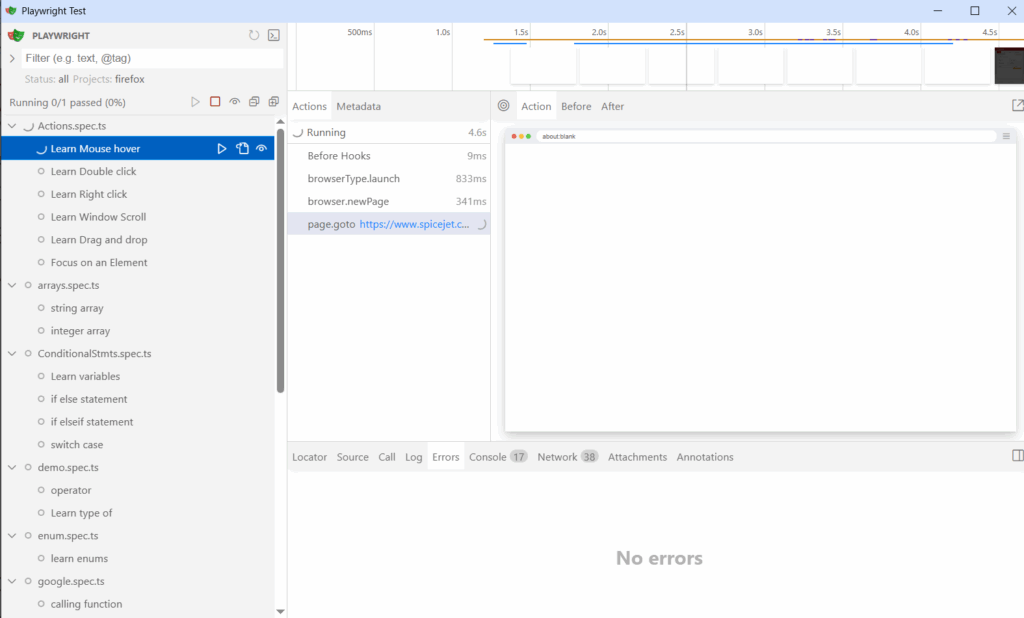
Running the Example Test in UI Mode:
Run your tests with UI Mode for a better developer experience with time travel debugging, watch mode and more.
npm command:
npx playwright test –ui
You can select the tests from left menu and click on "run" button. Sourcecode, Errors, Logs, Console output options are displayed at bottom