
- Jul 13, 2026
- admin
- 0
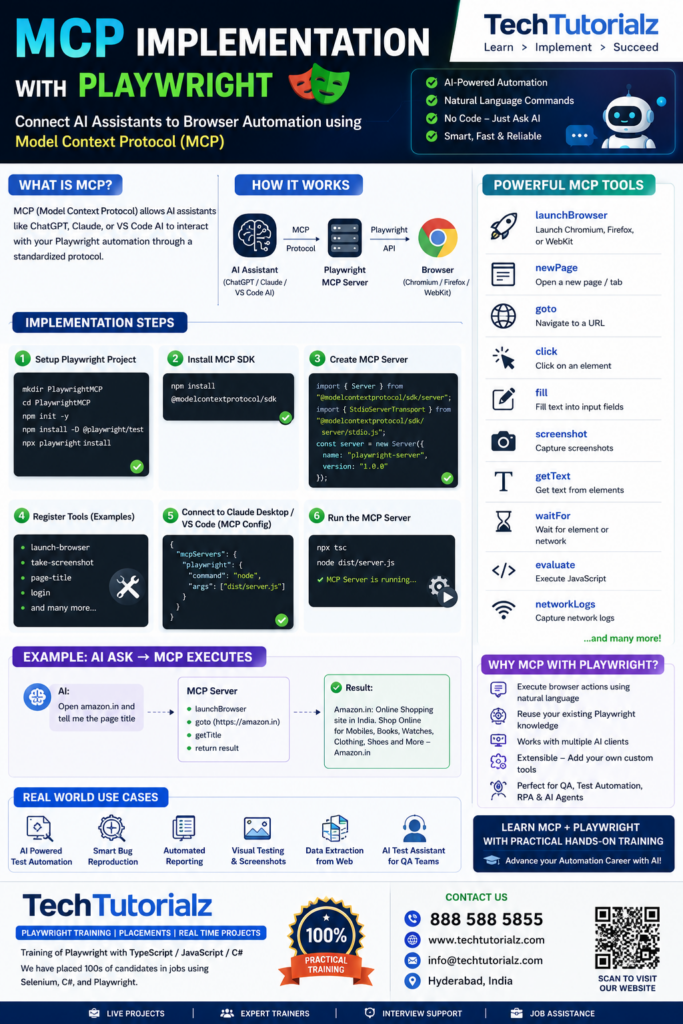
Implementing MCP (Model Context Protocol) in Playwright means allowing an AI assistant (like ChatGPT, Claude Desktop, VS Code AI, etc.) to interact with your Playwright automation through an MCP server.
The idea is:
+———————+
| AI Assistant |
| (ChatGPT/Claude) |
+———-+———-+
|
| MCP Protocol
|
+———-v———-+
| Playwright MCP |
| Server |
+———-+———-+
|
| Playwright API
|
+———-v———-+
| Browser |
| Chromium/Firefox |
+———————+
Step 1: Create a Playwright Project
mkdir PlaywrightMCP
cd PlaywrightMCP
npm init -y
npm install -D @playwright/test
Install browsers:
npx playwright install
Step 2: Install MCP SDK
npm install @modelcontextprotocol/sdk
Step 3: Project Structure
PlaywrightMCP
│
├── server.ts
├── playwright.config.ts
├── package.json
└── tests
login.spec.ts
Step 4: Create MCP Server
import { Server } from “@modelcontextprotocol/sdk/server/index.js”;
import { StdioServerTransport } from “@modelcontextprotocol/sdk/server/stdio.js”;
const server = new Server(
{
name: “playwright-server”,
version: “1.0.0”
},
{
capabilities: {
tools: {}
}
});
Step 5: Register Tool
server.tool(
“launch-browser”,
“Launch Chromium Browser”,
{},
async () => {
const { chromium } = await import(“playwright”);
const browser = await chromium.launch({
headless:false
});
const page = await browser.newPage();
await page.goto(“https://example.com”);
return {
content:[
{
type:”text”,
text:”Browser launched successfully”
}
]
};
}
);
Now AI can simply ask:
Launch browser
and MCP executes Playwright.
Step 6: Add Screenshot Tool
server.tool(
“take-screenshot”,
“Capture screenshot”,
{},
async ()=>{
const { chromium } = await import(“playwright”);
const browser = await chromium.launch();
const page = await browser.newPage();
await page.goto(“https://google.com”);
await page.screenshot({
path:”google.png”
});
await browser.close();
return{
content:[
{
type:”text”,
text:”Screenshot saved”
}
]
};
}
);
Step 7: Read Page Title
server.tool(
“page-title”,
“Get page title”,
{
url:”string”
},
async({url})=>{
const { chromium } = await import(“playwright”);
const browser=await chromium.launch();
const page=await browser.newPage();
await page.goto(url);
const title=await page.title();
await browser.close();
return{
content:[
{
type:”text”,
text:title
}
]
};
}
);
AI can ask:
Open amazon.in
Tell me page title
Step 8: Connect to Claude Desktop
Example configuration:
{
“mcpServers”: {
“playwright”: {
“command”: “node”,
“args”: [“dist/server.js”]
}
}
}
Restart Claude Desktop.
Now it automatically discovers:
- launch-browser
- take-screenshot
- page-title
Step 9: Login Tool Example
server.tool(
“login”,
“Login to application”,
{
username:”string”,
password:”string”
},
async({username,password})=>{
const { chromium } = await import(“playwright”);
const browser=await chromium.launch();
const page=await browser.newPage();
await page.goto(“https://demo.testfire.net”);
await page.fill(“#uid”,username);
await page.fill(“#passw”,password);
await page.click(“text=Login”);
return{
content:[
{
type:”text”,
text:”Login completed”
}
]
};
});
AI can invoke:
Login using admin/admin
without writing Playwright code.
Step 10: Run Server
Compile:
npx tsc
Run:
node dist/server.js
Real-World MCP Tools for Playwright
A mature Playwright MCP server typically exposes tools such as:
| Tool | Purpose |
| launchBrowser | Start Chromium, Firefox, or WebKit |
| closeBrowser | Close the browser |
| newPage | Create a new tab |
| goto | Navigate to a URL |
| click | Click an element |
| fill | Enter text into inputs |
| selectOption | Select dropdown values |
| check / uncheck | Toggle checkboxes |
| hover | Hover over elements |
| press | Send keyboard input |
| waitFor | Wait for elements or network responses |
| screenshot | Capture page screenshots |
| Generate PDFs (Chromium) | |
| evaluate | Execute JavaScript in the page |
| locator | Locate elements using Playwright locators |
| getText | Retrieve element text |
| getAttribute | Read element attributes |
| expectVisible | Validate element visibility |
| expectText | Assert expected text |
| download | Handle file downloads |
| upload | Upload files |
| networkLogs | Inspect network requests and responses |
| consoleLogs | Retrieve browser console messages |
| trace | Start and stop Playwright tracing |
Benefits of MCP with Playwright
- Natural language automation: “Open the login page and sign in.”
- No need to write code for routine browser interactions.
- Reusable tools: Expose your existing Playwright workflows as MCP tools.
- Cross-client compatibility: The same MCP server can be used by multiple AI clients that support MCP.
- Easy extension: Add new tools (e.g., API testing, database checks, report generation) without changing the AI client.
To learn more topics, please visit our comprehensive Playwright Tutorial.

//Server.ts file

